Counting the days between two dates sounds simple until you actually try it by hand — do you count the start date? The end date? Both? Neither? That single question is where most manual counts go wrong, and it’s exactly why “days between dates” is one of the most searched date questions online.
This guide covers the manual method, the most common counting mistakes, the Excel formula, and when a calculator is worth using instead.
What “Days Between Two Dates” Means
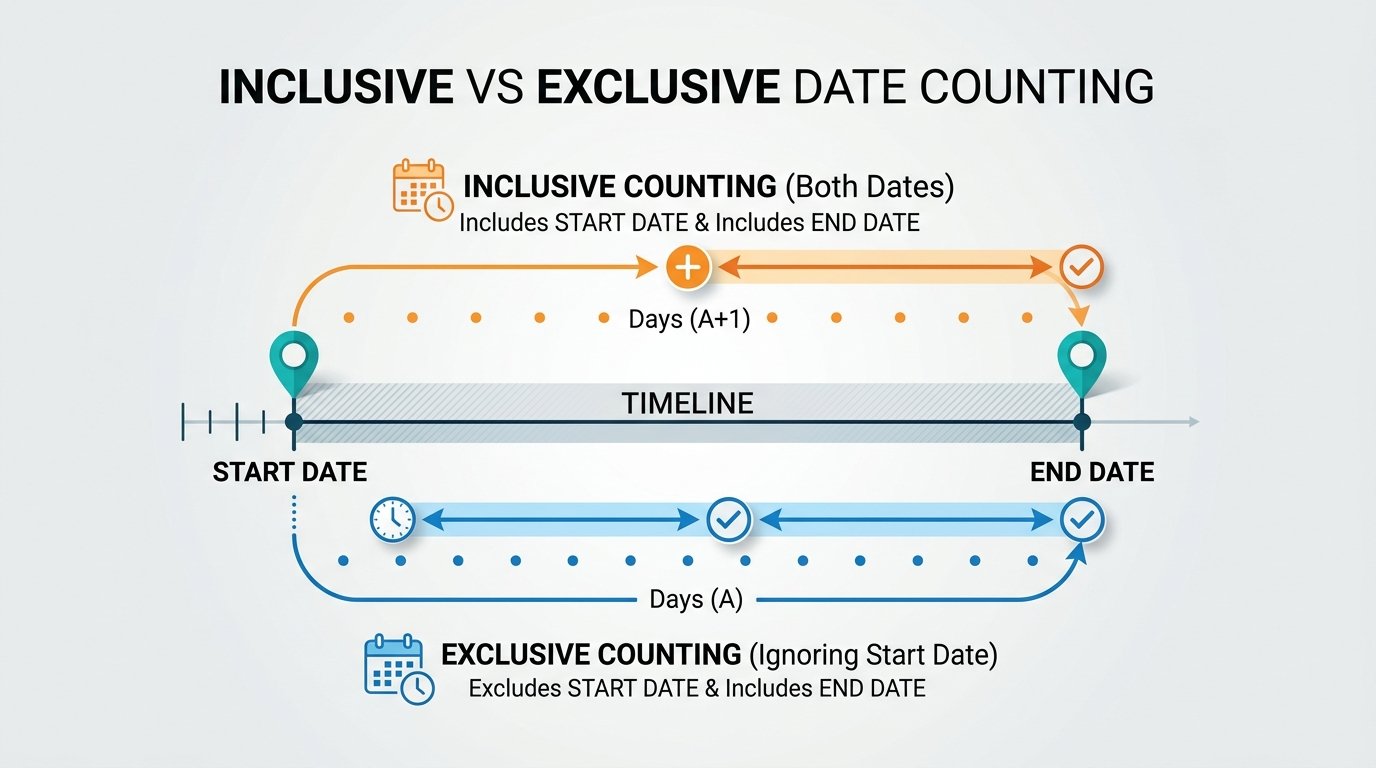
It’s the number of calendar days separating a start date and an end date — a plain count, not including time of day. The tricky part is the inclusive/exclusive rule: counting from Monday to Friday gives you 4 days if you don’t count the start day, but 5 if you count both endpoints. Most calculators use the exclusive method (start date not counted, end date counted) by default, which matches how most contracts and deadlines are measured.
How to Calculate Days Between Dates Manually
- Convert both dates to a day-of-year number, or simply count forward month by month.
- Subtract the earlier date’s day count from the later date’s.
- Account for the actual number of days in each month you’re crossing — not a flat 30.
- Add an extra day for every leap year (February 29) that falls within the range.
- Decide whether to include the start date, end date, both, or neither — based on what you’re measuring for (a deadline usually excludes the start date).
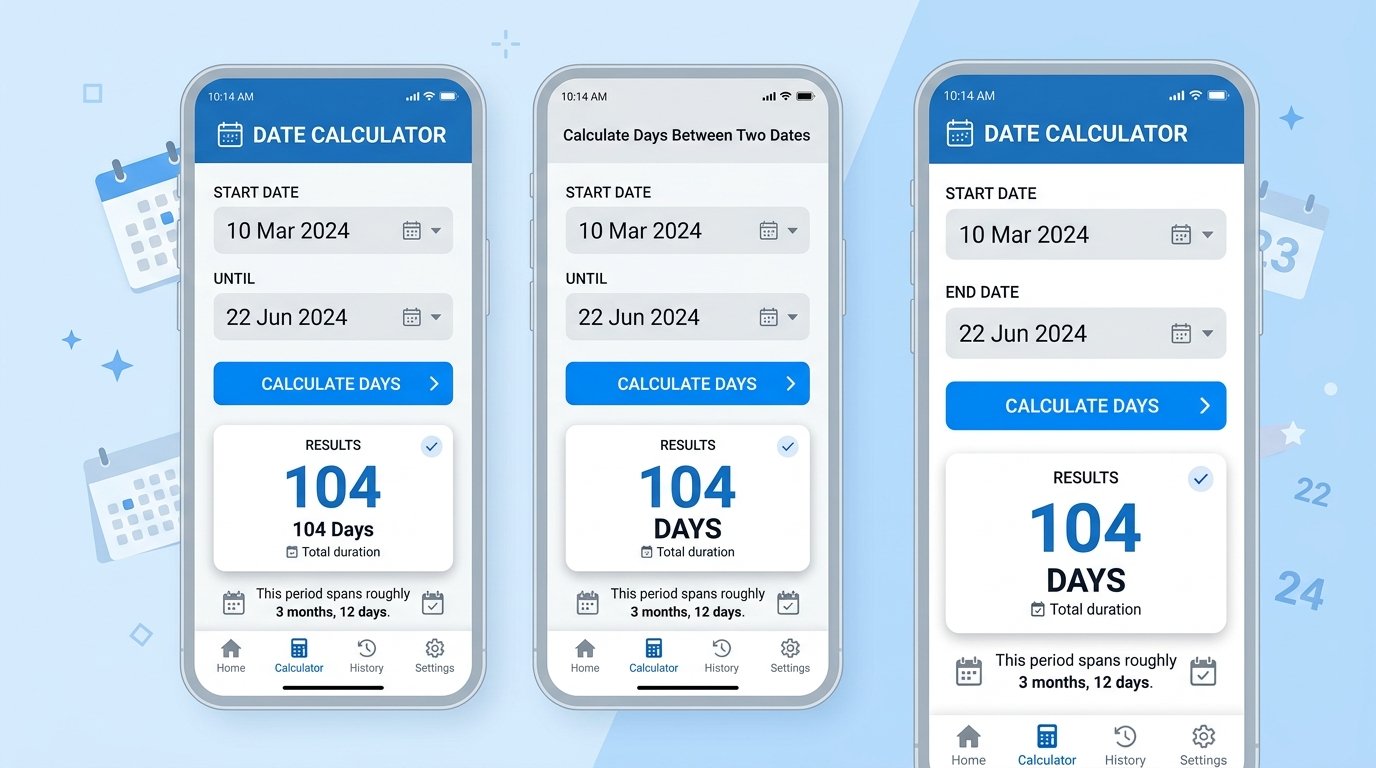
Example: from March 10 to June 22 in a non-leap year. That’s 21 days left in March, plus 30 in April, 31 in May, and 22 in June — 104 days total.
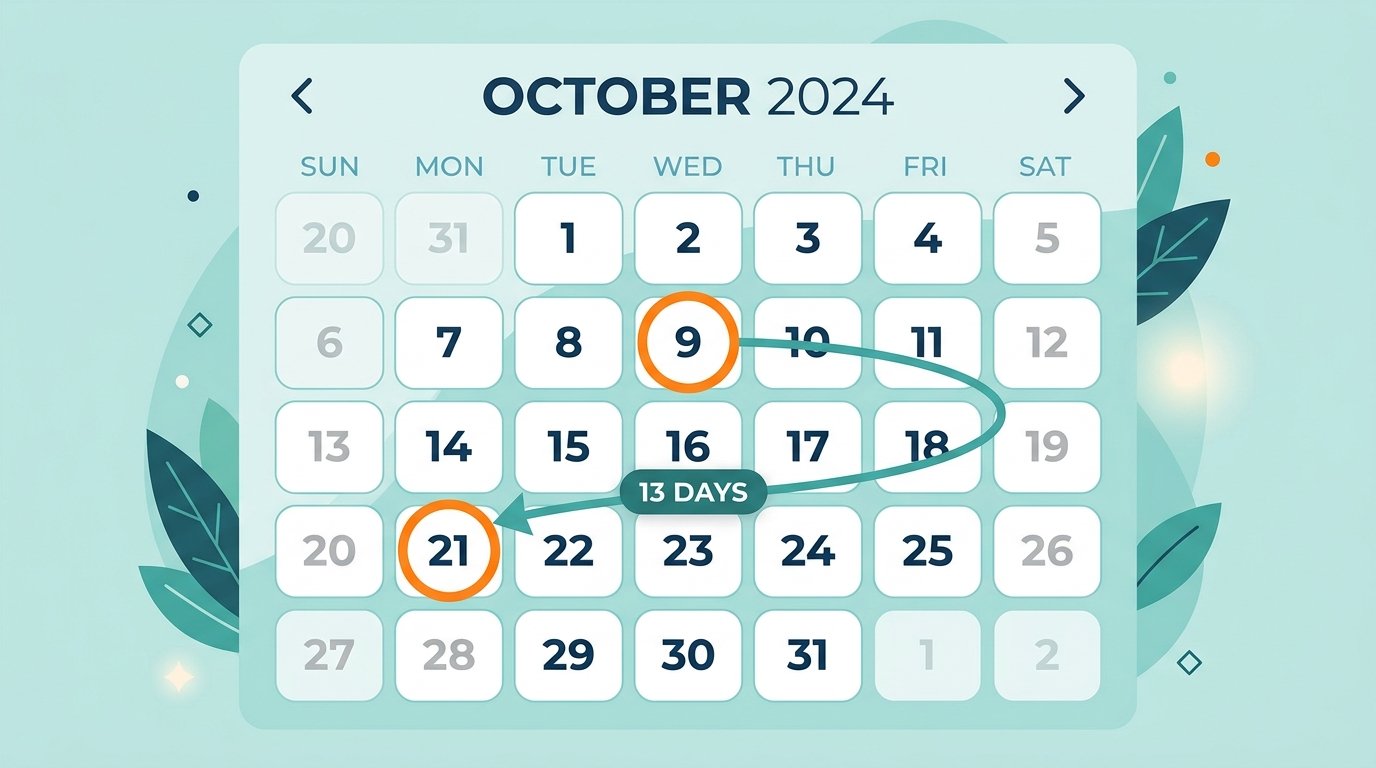
Common Mistakes When Counting Manually
- Off-by-one errors from not deciding upfront whether to include both endpoints.
- Forgetting leap years when the range crosses February 29.
- Assuming every month has 30 days, which throws the count off by several days across a multi-month range.
- Mixing up date formats (DD/MM vs. MM/DD), especially when working across US and international date conventions.
Days Between Dates in Excel
Excel handles this with basic subtraction: end date cell minus start date cell, formatted as a number instead of a date. For more control, DATEDIF with “D” as the unit gives the same result, and can also return the gap in months or years if needed. Neither approach warns you about the inclusive/exclusive counting choice — that’s still on you to decide based on what you’re calculating for.
Manual vs. Calculator: Which to Use
| Manual Count | Days Between Dates Calculator | |
|---|---|---|
| Leap year handling | Manual, easy to forget | Automatic |
| Inclusive/exclusive option | Not built in | Usually selectable |
| Output in weeks/months | Requires extra math | Included automatically |
| Speed for long ranges | Slow, error-prone | Instant |
For short, simple ranges, manual counting works fine. For anything spanning several months or years — or where accuracy actually matters, like a legal deadline — a calculator removes the guesswork.
Try It Yourself
Our Days Between Dates calculator gives you the exact day count, plus the equivalent in weeks and months, between any two dates — no manual counting required.
If you specifically need business days rather than calendar days, use the Working Days Calculator instead. And if you’re working the problem in reverse — finding a future date rather than the gap between two known dates — the Add/Subtract Days tool does that.