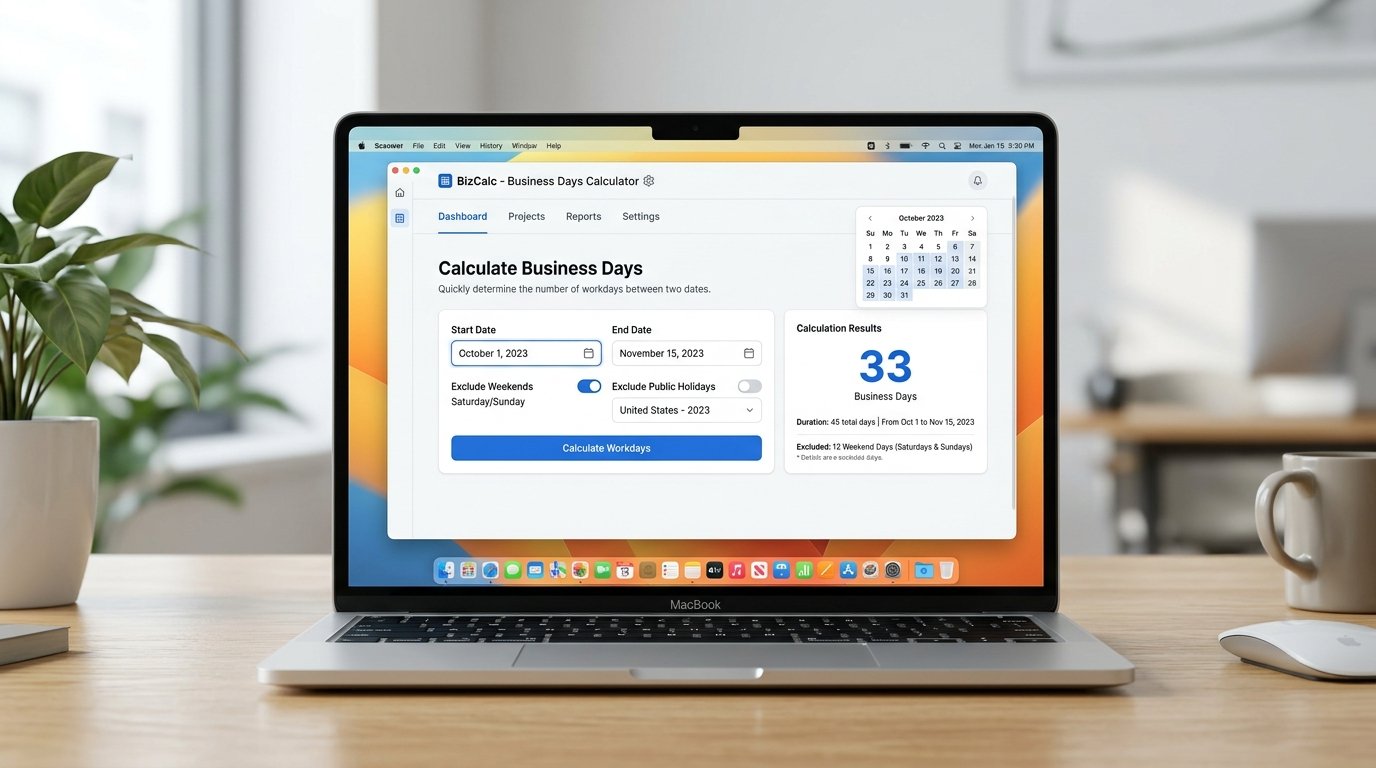
Figuring out how many working days sit between two dates sounds simple until you actually try to do it by hand. You start counting on your fingers, lose track around week three, forget that the 25th was a public holiday, and end up with a number you don’t fully trust. A working days calculator solves that in one step: it takes a start date and an end date, strips out weekends and holidays, and hands you an exact count you can use for payroll, deadlines, shipping estimates, or notice periods.
This guide walks through what a working days calculator actually does, how to calculate working days by hand, how to do the same in Excel and Google Sheets using NETWORKDAYS and WORKDAY, and how the definition of a “working day” shifts depending on which country you’re in.
What Is a Working Days Calculator?
A working days calculator is a tool that counts the number of business days — typically Monday through Friday — between two dates, while excluding weekends and any public or company holidays you specify. Instead of manually crossing off days on a calendar, you enter a start date and end date (and optionally a list of holidays), and the calculator returns the exact number of working days in that range.
Some versions of the tool work in reverse: instead of counting days between two fixed dates, you give it a starting date and a number of working days, and it tells you what future (or past) date you’ll land on. This is the “add business days” or “subtract business days” mode, and it’s what most delivery-estimate and deadline tools are quietly running behind the scenes.
How Working Days Are Calculated (The Manual Method)
If you want to calculate working days without any tool, the logic is straightforward:
- Count the total calendar days between the start and end date (decide up front whether both dates are included).
- Subtract the weekend days that fall inside that range — normally Saturdays and Sundays.
- Subtract any holidays that fall on a weekday within the range (holidays that land on a weekend don’t get subtracted twice, since they’re already excluded).
Here’s a worked example — counting working days from Monday, March 2 to Friday, March 20:
| Item | Value |
|---|---|
| Total calendar days (inclusive) | 19 |
| Weekend days in that range | 4 (two Saturdays, two Sundays) |
| Public holidays on a weekday | 0 |
| Working days | 19 − 4 − 0 = 15 |
That’s the entire method. The complexity only shows up when your date range stretches across months with irregular holiday patterns, or when you’re doing this for dozens of rows in a spreadsheet — which is exactly where a calculator or formula earns its keep.
Why Use an Online Working Days Calculator Instead of Counting by Hand
Manually counting works fine for a two-week window. It falls apart once you’re dealing with quarters, fiscal years, or multiple overlapping holiday calendars. A working days calculator removes three common sources of error:
- Miscounted weekends — it’s easy to lose track of which day of the week a date falls on, especially across a leap year or a date range spanning several months.
- Forgotten holidays — national and regional holidays shift dates every year, and it’s easy to forget one exists until it’s too late.
- Observed holiday shifts — in the US, when Independence Day (July 4) or Christmas (December 25) lands on a weekend, the holiday is officially observed on the nearest weekday. A calculator applies these shift rules automatically; a manual count usually misses them.
Step-by-Step: Using an Online Working Days Calculator
- Choose your mode. “Count working days between two dates” or “Add/subtract working days from a date.”
- Enter your start date. For counting mode, decide whether the start date itself should be included.
- Enter your end date (or, for add/subtract mode, enter the number of working days you want to move forward or backward).
- Select your weekend pattern. Most calculators default to Saturday–Sunday, but some let you switch to a Friday–Saturday weekend for regions where that’s standard.
- Add holidays. Either load a country’s public holiday calendar automatically or add custom dates — useful for company-specific closures and floating holidays.
- Calculate. You’ll get a breakdown: total calendar days, weekend days excluded, holidays excluded, and the final working day count.
Calculating Working Days in Excel
Excel has two built-in functions purpose-built for the job — no external tool needed.
The NETWORKDAYS Function
NETWORKDAYS returns the number of whole working days between a start date and an end date, automatically excluding Saturdays and Sundays. Syntax:
- start_date and end_date are required.
- holidays is optional — a range of cells listing dates to exclude in addition to weekends.
Basic example — A2 = start date, B2 = end date:
To also exclude company holidays in F2:F12:
The NETWORKDAYS.INTL Function
The standard NETWORKDAYS function only ever treats Saturday and Sunday as the weekend. For a Friday–Saturday weekend, or to exclude Sundays only, use NETWORKDAYS.INTL:
The weekend argument accepts a numeric code (1 = Saturday/Sunday, 2 = Sunday/Monday, 11 = Sunday only) or a seven-character text string marking which days are non-working.
The WORKDAY Function
To find a future or past date that falls a certain number of working days away:
Pair it with TODAY() to get a rolling “X working days from today” formula:
For custom weekend schedules, WORKDAY.INTL mirrors the flexibility of NETWORKDAYS.INTL.
Common Excel Errors to Watch For
| Error | Likely Cause | Fix |
|---|---|---|
| #VALUE! | Date argument isn’t a real date — often imported as text | Check with =ISNUMBER(A2). If FALSE, reformat the cell as a date |
| Holiday list not applied | Holiday range includes blank or non-date cells | Clean the holiday list; confirm dates are in Excel date format |
| Unexpectedly high/low result | Reversed start/end date, or holiday range too broad | Swap the dates; narrow the holiday range to single cells only |
Working Days in a Month or Year
To count working days in a specific month, combine NETWORKDAYS with EOMONTH:
This gives working days from a given start date through the end of that same month — useful for building a working-days-per-month table across a full year.
Calculating Working Days in Google Sheets
Google Sheets uses the exact same function names and syntax as Excel:
The behavior, arguments, and error patterns are functionally identical. The one practical difference is date formatting on import — Sheets is generally more forgiving about auto-detecting dates pasted from other sources, but spot-check with =ISNUMBER() if a formula returns an error.
Working Days by Country
The phrase “working day” isn’t universal. The weekend pattern and holiday calendar vary significantly — which is exactly why most calculators ask you to select a country before running the calculation.
| Region | Standard Weekend | Approx. Working Days/Year | Holiday Notes |
|---|---|---|---|
| United States | Saturday–Sunday | ~250–252 | 11 federal holidays; observed on nearest weekday if they fall on a weekend |
| India | Saturday–Sunday (varies by state) | ~250–260 | National holidays plus state-specific holidays; some sectors observe alternate Saturdays off |
| United Kingdom | Saturday–Sunday | ~252 | 8 bank holidays, mostly falling on Mondays |
| Canada | Saturday–Sunday | ~250–252 | 8 federal holidays plus additional provincial holidays |
| Australia | Saturday–Sunday | ~250–253 | 7 national public holidays plus state-level holidays |
| UAE / Saudi Arabia | Friday–Saturday | Varies | Weekend structure differs entirely from Western five-day-Monday-start conventions |
A few things worth calling out:
- India doesn’t have a single national working-day count — it depends heavily on the state and whether alternate Saturdays are working days.
- The US federal holiday observance rule matters more than people expect. If July 4 or December 25 lands on a Saturday, it’s observed the preceding Friday; on a Sunday, the following Monday.
- Friday–Saturday weekends in several Middle Eastern countries mean a standard Saturday/Sunday formula will simply be wrong — exactly the scenario
NETWORKDAYS.INTLwas built to handle.
Common Uses for a Working Days Calculator
| Use Case | What It Solves |
|---|---|
| Payroll & daily rate calculations | Prorating salaries for partial months, calculating daily rates, or verifying timesheets against actual business days in a pay period |
| Contract & SLA deadlines | Converting “deliver within 10 business days” into a real calendar date |
| Shipping & delivery estimates | Adding a promised number of business days to the order date, accounting for weekends and holidays in between |
| Notice periods & last working day | Knowing how many business days remain until an employee’s final day |
| Project timelines | Building realistic schedules — a “two-week” task is really closer to 10 working days once weekends are excluded |
| Retirement & countdown planning | Tracking exactly how many working days remain until a retirement date |
| Annual planning | Knowing total working days in a year (~250–260 depending on country) for budgeting billable hours or setting KPI targets |
Advantages and Limitations
| Advantages | Limitations |
|---|---|
| Removes manual counting errors across multi-month ranges | Company-specific closures must still be entered manually |
| Automatically applies observed-holiday shift rules | A generic national calendar may miss state or sector-specific holidays |
| Supports country-specific holiday calendars (US, UK, India) | Results are only as accurate as the holiday list you load |
| Handles both directions — counting and forward/backward projection | An outdated holiday list will silently produce wrong results |
Common Mistakes When Calculating Working Days
- Forgetting to decide whether the start date is included. Some tools count inclusively, others don’t — check before trusting the output for a legal or contractual deadline.
- Ignoring observed-holiday shifts. A holiday that technically falls on a Saturday still often gets observed on a different weekday, and that shifted date is the one that should be excluded.
- Applying a Saturday–Sunday weekend everywhere. This breaks in regions with a Friday–Saturday weekend, producing counts that are off for every such day in the range.
- Double-subtracting holidays that fall on weekends. A holiday landing on a Sunday shouldn’t reduce your count twice — it’s already excluded as a weekend day.
- Using a stale holiday list. Public holiday dates shift every year, so a list copied from last year’s calculation will silently produce the wrong answer this year.
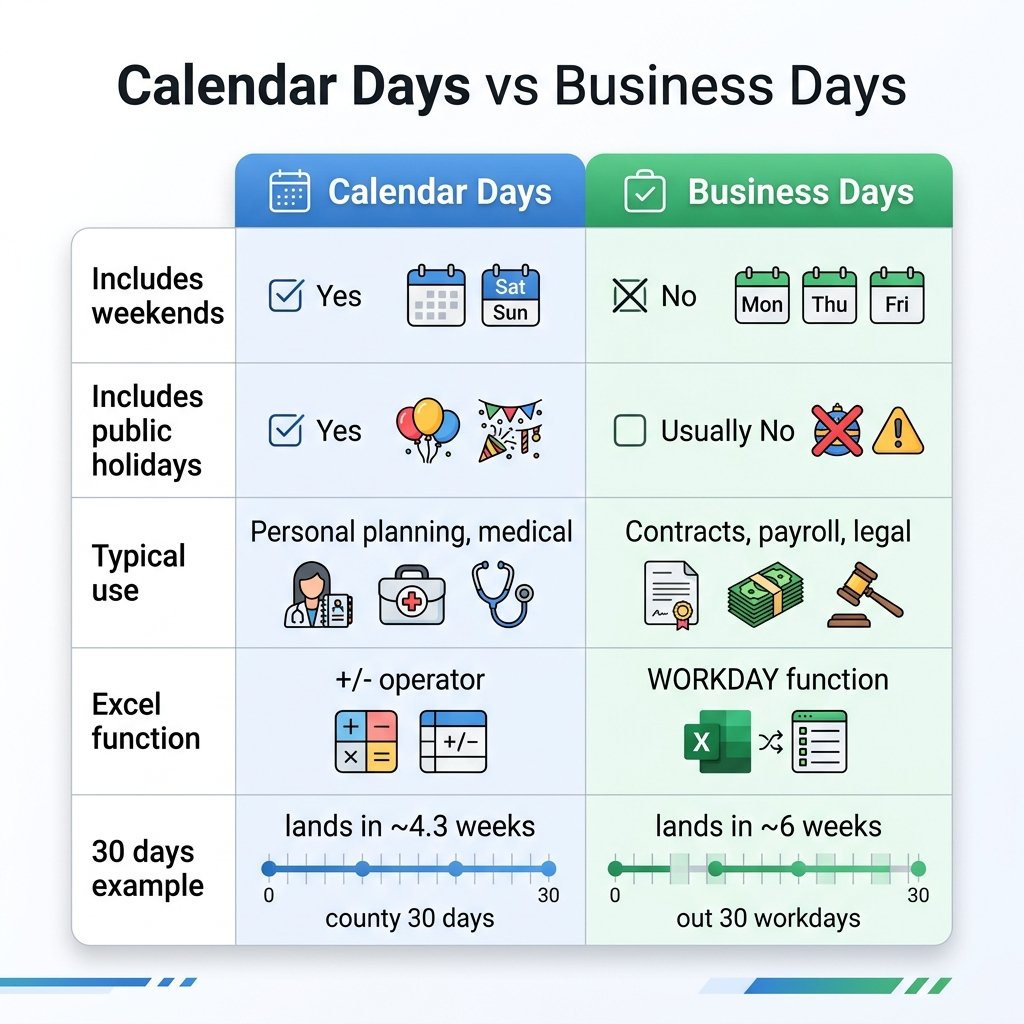
Working Days Calculator vs. Calendar Days Calculator
| Working Days Calculator | Calendar Days Calculator | |
|---|---|---|
| Counts weekends | No — excluded | Yes — included |
| Counts holidays | No, if specified | Yes — included |
| Best for | Deadlines, payroll, contracts, delivery estimates | Age calculations, general date math, personal countdowns |
| Typical result | Lower number for the same date range | Higher number for the same date range |
If a vendor promises delivery “within 15 business days,” and you calculate using calendar days instead of working days, you’ll consistently underestimate how long the wait actually is — the single most common confusion between the two tools.
Final Thoughts
A working days calculator turns a tedious, error-prone manual task into a one-step lookup — whether you’re confirming a shipping estimate, prorating payroll, working out a contract deadline, or just double-checking how many business days are left before a project is due. For one-off calculations, an online calculator is the fastest route. For anything repeated across rows of data — payroll sheets, project trackers, delivery logs — NETWORKDAYS, NETWORKDAYS.INTL, and WORKDAY in Excel or Google Sheets will do the same job natively. Either way, the accuracy comes down to two things: getting your weekend pattern right for the region you’re working in, and keeping your holiday list current.