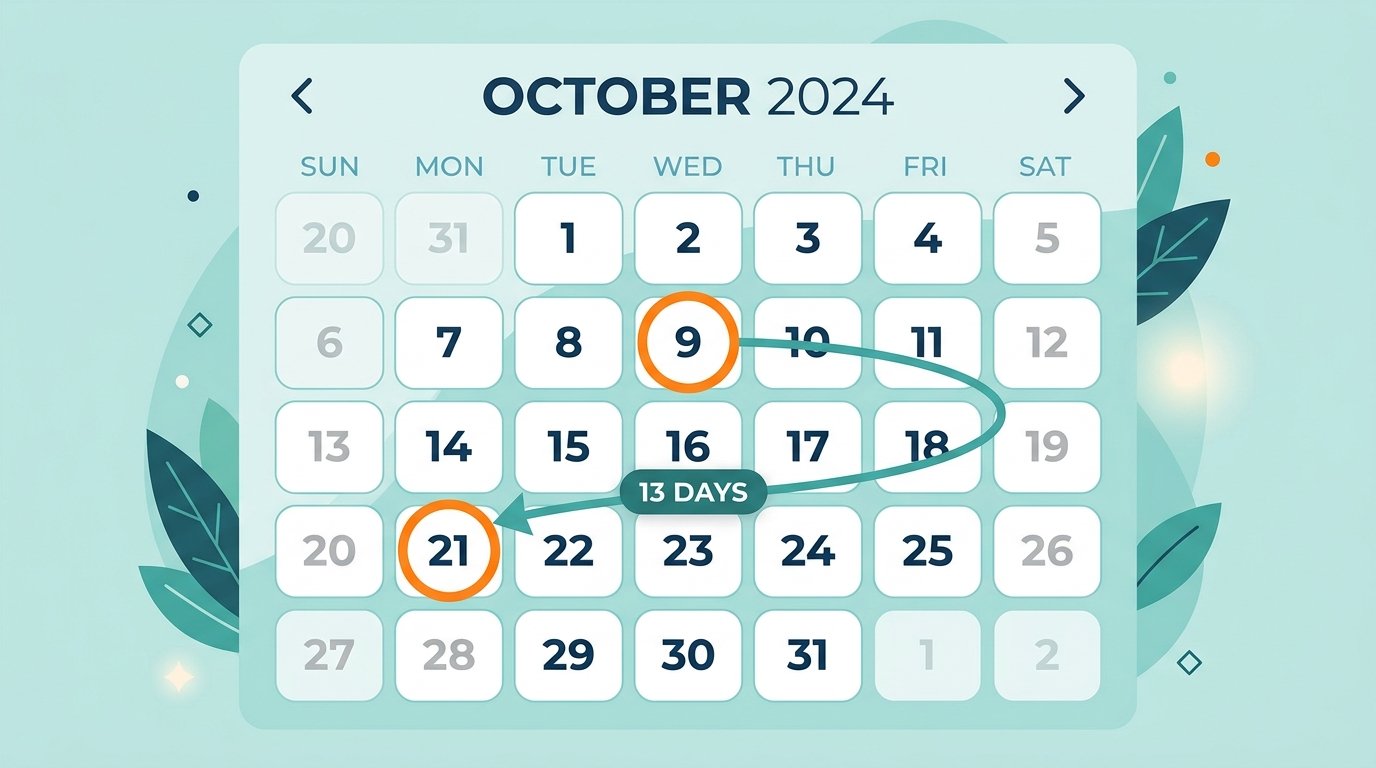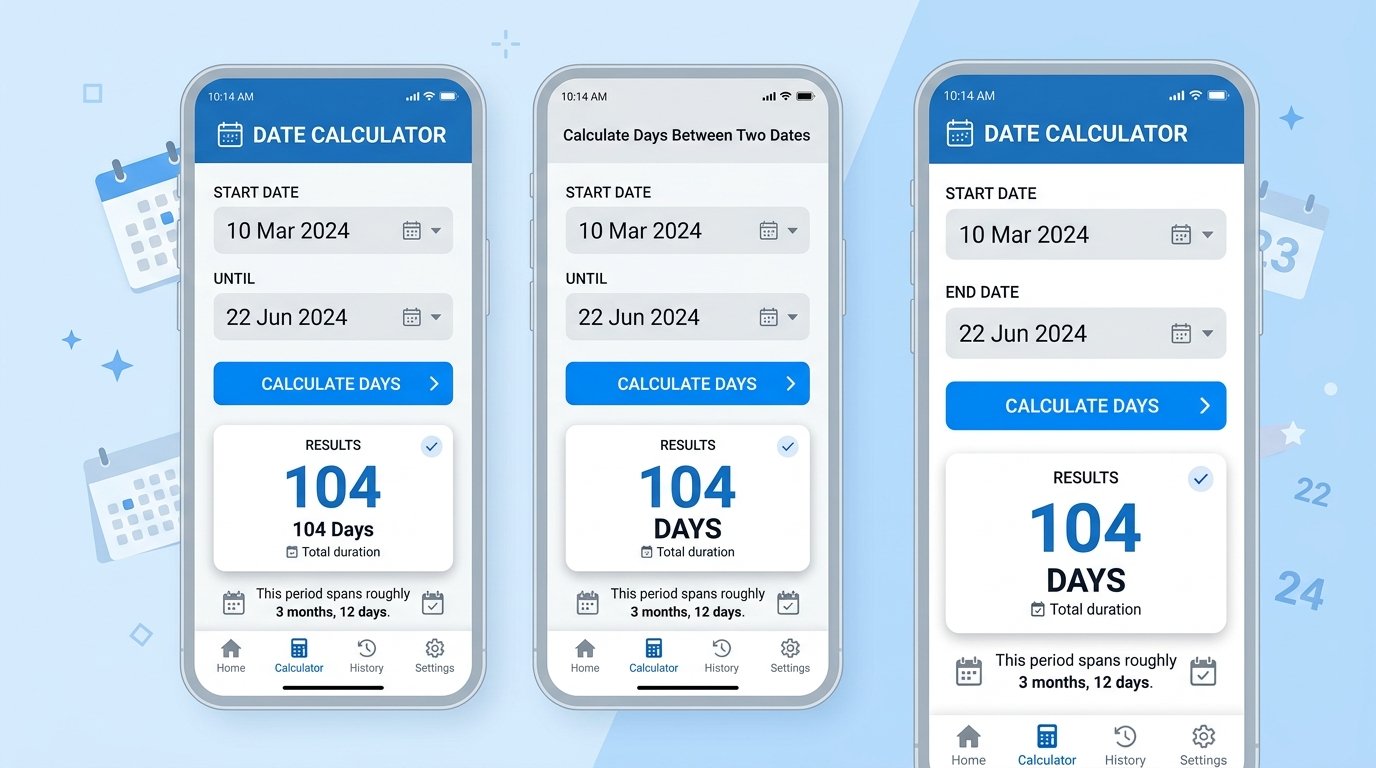
Figuring out how many days sit between two dates sounds simple until you actually try it by hand. Months don’t all have the same length, leap years throw an extra day into February every four years, and there’s a genuine judgment call about whether the end date itself should count. This guide walks through exactly how to calculate the number of days between two dates — by calendar days, business days, or a full years/months/days breakdown — and where people most often get the count wrong.
Whether you’re figuring out how many days until a deadline, how many days you’ve been at a job, how long a rental period runs, or how many working days fall inside a project window, the method is the same underlying math with a few important variations depending on what you’re actually trying to measure.
What “Days Between Two Dates” Actually Means
A days-between-dates calculation is the count of calendar days separating a start date and an end date. There are two ways to express that count:
- Total days — a single number representing the full span (e.g., 47 days)
- Calendar breakdown — the same span expressed as years, months, and leftover days (e.g., 1 month, 17 days)
Both are correct; they just answer different questions. Total days is what you want for deadlines, invoices, or countdowns. The calendar breakdown is more useful for things like age, tenure, or contract length, where “1 year, 2 months” is more meaningful than “427 days.”
The Inclusive vs. Exclusive Counting Problem
This is the single most common source of an “off by one” day count, and it trips up manual calculations and even some online tools.
| Counting Method | How It Works | July 1–5 Result |
|---|---|---|
| Exclusive (default) | Measures the gap between two dates — neither endpoint is counted twice | 4 days |
| Inclusive | Both the start and end date count as full days | 5 days |
The distinction matters most for:
- Rental or lease periods (does the move-out day count as a full day?)
- Hotel or Airbnb stays (nights vs. calendar days)
- Attendance or billing periods
- Same-day spans — exclusive gives 0 days, inclusive gives 1
If a calculation ever looks “one day off” from what you expected, this is almost always why.
How to Calculate Days Between Two Dates by Hand
- Subtract the years — take the end year minus the start year.
- Adjust for incomplete years — if the end date’s month/day comes before the start date’s month/day, subtract one year and carry the difference forward as months.
- Work out the leftover months, then the leftover days, from what remains.
- Convert to a single day count if needed, using 365 days per year (365.25 to average in leap years) plus the appropriate days for whichever months are included.
- Account for leap years — any February 29 falling inside the range adds one day to the total that a naive 30/31-day month count would miss.
This works, but it’s easy to make a small error anywhere in the process — which is exactly why a calculator (or a spreadsheet formula) is the more reliable option for anything that matters.
Calculating Days Between Two Dates in Excel or Google Sheets
Spreadsheets handle this natively, and it’s faster and less error-prone than doing the arithmetic manually.
Basic Day Count
Format the result cell as a Number (not a date), or Excel will display it as a date instead of a day count.
Years, Months, and Days Breakdown — DATEDIF Function
Business Days Only (Excluding Weekends)
Add a holiday range as a third argument to exclude public holidays too:
Google Sheets uses identical syntax for all three formulas — the same cells work without modification if you’re moving a sheet between the two platforms.
Calendar Days vs. Business Days vs. Working Days
These three terms get used almost interchangeably, but they answer different questions:
| Term | What It Counts | Typical Use Case |
|---|---|---|
| Calendar days | Every day, including weekends and holidays | Deadlines, ages, countdowns |
| Business days | Monday–Friday only | Contract terms, shipping estimates |
| Working days | Business days, minus public holidays | Payroll, legal notice periods |
A quote of “5 business days” for shipping, for example, means something different from “5 calendar days” — the business-day version could stretch across a full calendar week or more if a weekend falls inside it.
Common Mistakes When Counting Days Between Dates
- Forgetting leap years. Any range crossing a February in a leap year is one day longer than a naive month-length count would suggest.
- Mixing up inclusive and exclusive counting, especially for rentals, stays, and attendance periods.
- Ignoring time zones when the dates come from timestamped data (e.g., server logs or booking systems) rather than plain calendar dates — a date can flip depending on which time zone it’s read in.
- Assuming “business days” and “working days” are always the same thing — working days often subtracts public holidays that a pure business-day count wouldn’t.
- Entering the dates in the wrong order. Reversing the start and end date without correcting for it produces a negative count instead of a valid one.
Practical Examples
| Scenario | Start | End | Result |
|---|---|---|---|
| Deadline planning | July 16, 2026 | September 30, 2026 | 76 calendar days (approx. 54 business days) |
| Age in days | September 5, 1970 | June 5, 2022 | ~18,627 days (using 365.25/year to average leap years) |
| Rental period (exclusive) | August 1 | August 30 | 29 days — affects prorated rent calculations |
| Rental period (inclusive) | August 1 | August 30 | 30 days |
Final Thoughts
The simplest way to count days between two dates accurately is to use an online calculator or a spreadsheet formula — both handle leap years, month-length variation, and the inclusive/exclusive boundary automatically. For anything where the exact count matters (legal deadlines, payroll, contract terms), always double-check whether the tool you’re using counts the start and end date themselves, and whether “business days” in that context includes public holidays or not. Getting those two settings right eliminates almost every off-by-one day count error in practice.